Node dependencies
October 23, 2021
| – NPM dependencies |
| – Package-lock.json |
| – Updating dependencies |
| – Test your updates |
| Content |
|---|
NPM dependencies
Before you can run an application, you need to install all required dependencies from the package.json file. When you do npm install it reads the list of dependencies from the package.json and all of their related dependencies and version locks, downloads these dependencies and places them into the node_modules folder.
Installing new dependencies
Same npm install command can also be used to add new dependencies. The packages will be downloaded from NPM, installed to your node_modules/ folder, and added each to their respective dependencies in package.json. The package-lock.json file will also be updated anytime you add or update a dependency.
npm install <package-name>

//devDependency
npm install <package-name> --save-dev
npm install <package-name> -D  //devDependency
By default, npm installs packages as an entry under dependencies, but when the flag devDependency is added to a package, it'll be installed as a devDependency. As a general rule, dependencies are used during production, and devDependencies only in development.
Package-lock.json
The package-lock.json file is generated for you automatically by NPM. It locks a package dependencies and their sub-dependencies. Together they provide a snapshot of your entire dependency tree, and all of the information NPM needs to recreate the files needed to run your application.
npm install <package-name>
npm uninstall <package-name>
npm update
Running the commands here above will alter the dependencies needed to run your project, and an NPM package-lock file update.
Updating dependencies
Updating your project dependencies regularly makes your code less prone to security vulnerabilities, general bug fixes, and it provides performance improvements to your applications.
NPM for the past few years have been scanning for vulnerabilitites after every install automatically, and when they're found - which happens often - it is up to you to decide what to do to about them.
Security audit
These automatically ran vulnerability scans are called security audits, and you can manually run an audit by executing:
npm audit //or
npm audit fix //automatically update package to the fixed version  (~) //or
npm audit --force //breaking change
What does the audit command do? It takes the current version of a package in your project and checks the list of known vulnerabilities for that specific package and version. If it finds a vulnerability, it reports it.
You shouldn't just blindly upgrade the project by running npm audit fix either. Especially if these are dependencies someone else has added to their package.
Checking for outdated packages
To check whether any packages in your project are outdates:
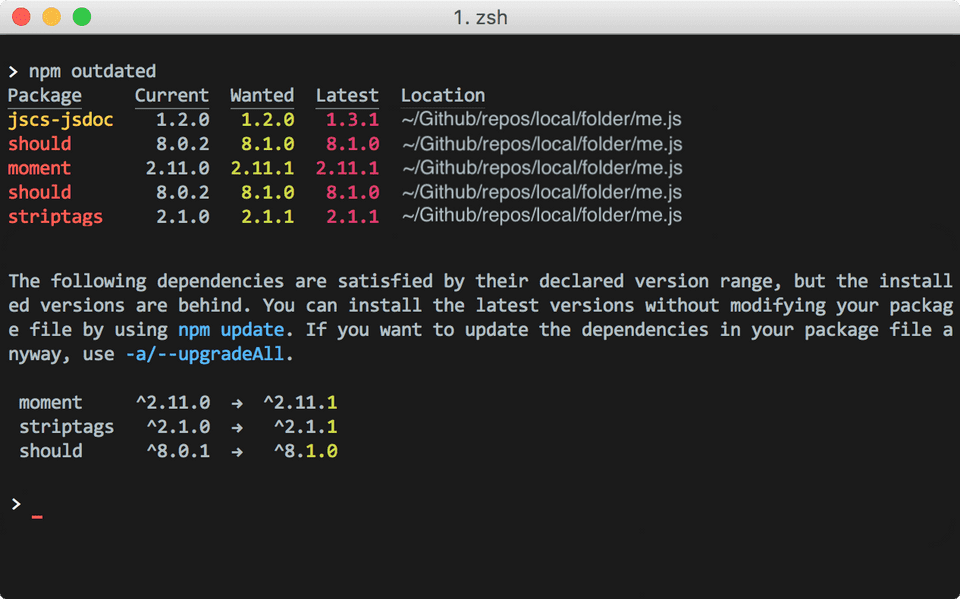
npm outdated
Since npm allows you to install newer versions of a package than the one specified. Using tilde (~) gives you bug fixes releases and caret (^) gives you backwards compatibility.
It'll output to the terminal a list of all installed packages with their current installed versions, wanted versions - npm update @version - and latest available one at the registry.
 Package | Current | Wanted | Latest | Location
 -------------------------------------------------
 React   | 16.4    | 17.1   | 17.7   | Project/location
Updating packages
To update all packages at once to their wanted version run command below or you can also specify the package name.
npm update //or
npm update <package-name>
When you do npm update, the version ranges in package.json file will be respected; however any updates in needing major versions will not do so automatically.
Major releases updates will install the latest version of the package regardless of your package current version, and can introduce breaking changes into your project.
For the latest version of a package:
npm install <package>@latest
Tilde (~) and Caret (^) versions
Approximately equivalent to version (~) will update you to all future patch versions, without incrementing the minor version.
~1.2.3 will use releases from 1.2.3 to < 1.3.0
Compatibile with version (^) will update you to all future minor/patch versions, without incrementing the major version
~1.2.3 will use releases from 1.2.3 to < 2.0.0
Testing your updates
Anytime you add a new dependency to your project, there's a chance for introducing breaking changes into your code base, so it is always a good idea to test your project afterwards. Even when packages follow within the same major version and shouldn't break anything, know that not everyone has adopted semver.
One way to deal with vulnerabilities
Go over to the package that takes the dependency repository and fork it. Then modify the
dependency to remove the reference to the vulnerable package version and replace it with the fixed version.
Test to make sure everything still works, and submit a pull request.
Once the PR is merged in with the main repository other packages that were using it will now start using the new fixed dependency.
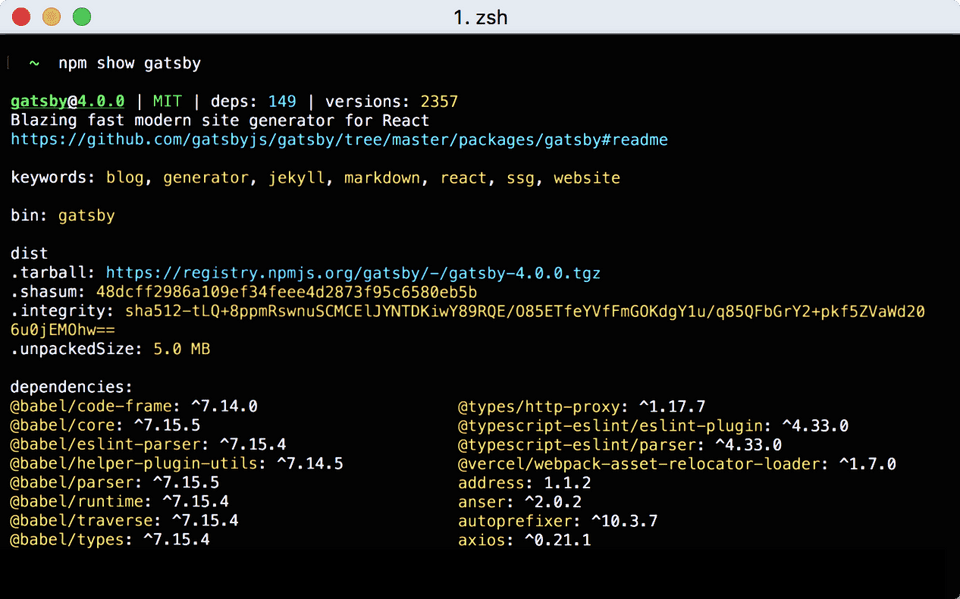
Another useful command: npm show [package-name]