Accessibility
June 20, 2020
| Content |
|---|
| Text content |
| Page layouts |
| Alt atributes |
| Link styling |
Accessibility is the practice of making your websites usable by as many people as possible. We traditionally think of this as being about people with disabilities, but the practice of making sites accessible also benefits other groups such as those using mobile devices, or those with slow network connections.
You might also think of accessibility as treating everyone the same, and giving them equal opportunities, no matter what their ability or circumstances. Just as it is wrong to exclude someone from a physical building because they are in a wheelchair (modern public buildings generally have wheelchair ramps or elevators), it is also not right to exclude someone from a website because they have a visual impairment. We are all different, but we are all human, and therefore have the same human rights.
HTML and accessibility
You might wonder why this is so important. After all, you can use a combination of CSS and JavaScript to make just about any HTML element behave in whatever way you want. For example, a video play button using div tags:
<div>Play video</div>
Not only does <button>s have some suitable styling applied by default, they also have built-in keyboard accessibility — that allow users to navigate between buttons using the Tab key and activate their selection using Return or Enter.
<button>Play video</button>
And it doesn't take any longer write. Even better, semantic markup has other benefits beyond accessibility:
- Easier to develop with — as mentioned above, you get some functionality for free, and it is easier to understand.
- Good for SEO — search engines give more importance to keywords inside headings, links, etc. than keywords included in non-semantic
<div>s, etc., so pages will be easier to find.
Text content
One of the best accessibility aids a screen reader user can have is an excellent content structure with headings, paragraphs, lists, etc.
<h1>My heading</h1>
<p>This is the first section of my document.</p>
<p>I'll add another paragraph here too.</p>
<ol>
  <li>Here is</li>
  <li>a list for</li>
  <li>you to read</li>
</ol>
<h2>My subheading</h2>
<p>This is the first subsection of my document. I'd love people to be able to find this content!</p>
<h2>My 2nd subheading</h2>
<p>This is the second subsection of my content. I think is more interesting than the last one.</p>
Using clear language
The language you use can also affect accessibility. In general, you should use clear language that is not overly complex and doesn't use unnecessary jargon or slang terms. This not only benefits people with cognitive or other disabilities; it benefits readers for whom the text is not written in their first language, younger people ... everyone, in fact! Apart from this, you should try to avoid using language and characters that don't get read out clearly by the screen reader. For example:
• Don't use dashes if you can avoid it. Instead of writing 5–7, write 5 to 7.
• Expand abbreviations — instead of writing Jan, write January.
Page layouts
Table layouts are a relic of the past — they made sense back when CSS support was not widespread in browsers, but now they just create confusion for screen reader users. Additionally, their source code requires more markup, which makes them less flexible and more difficult to maintain.
<header>
  <h1>Header</h1>
</header>

<nav>
  <!-- main navigation in here -->
</nav>

<!-- Here is our page's main content -->
<main>

  <!-- It contains an article -->
  <article>
    <h2>Article heading</h2>

    <!-- article content in here -->
  </article>

  <aside>
    <h2>Related</h2>

    <!-- aside content in here -->
  </aside>

</main>

<!-- And here is our main footer that is used across all the pages of our website -->

<footer>
  <!-- footer content in here -->
</footer>
If you try our more modern structure example with a screen reader, you'll see that the layout markup no longer gets in the way and confuses the content readout. It is also much leaner and smaller in terms of code size, which means easier to maintain code, and less bandwidth for the user to download (particularly prevalent for those on slow connections).
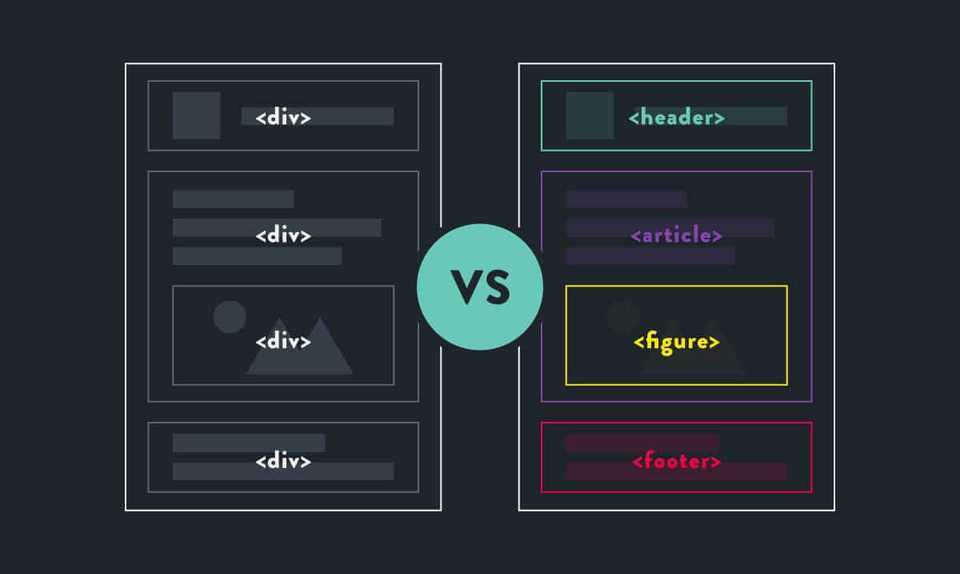
Another consideration when creating layouts is using HTML5 semantic elements as seen in the above example. You can create a layout using only nested {{htmlelement("div")}} elements, but it is better to use appropriate sectioning elements to wrap your main navigation ({{htmlelement("nav")}}), footer ({{htmlelement("footer")}}), repeating content units ({{htmlelement("article")}}), etc. These provide extra semantics for screen readers (and other tools) to give users extra clues about the content they are navigating
UI Controls
By UI controls, we mean the main parts of web documents that users interact with — most commonly buttons, links, and form controls.
<h1>Links</h1>
<p>This is a link to <a href="https://www.mozilla.org">Mozilla</a>.</p>
<p>Another link, to the <a href="https://developer.mozilla.org">Mozilla Developer Network</a>.</p>
<h2>Buttons</h2>
<p>
  <button data-message="This is from the first button">Click me!</button>
  <button data-message="This is from the second button">Click me too!</button>
  <button data-message="This is from the third button">And me!</button>
</p>
<h2>Form</h2>
<form>
  <div>
    <label for="name">Fill in your name:</label>
    <input type="text" id="name" name="name">
  </div>
  <div>
    <label for="age">Enter your age:</label>
    <input type="text" id="age" name="age">
  </div>
  <div>
    <label for="mood">Choose your mood:</label>
    <select id="mood" name="mood">
      <option>Happy</option>
      <option>Sad</option>
      <option>Angry</option>
      <option>Worried</option>
    </select>
  </div>
</form>
This means using links, buttons, form elements, and labels appropriately (including the {{htmlelement("label")}} element for form controls).
You should avoid this sort of html markup:
<div data-message="This is from the first button">Click me!</div>
<div data-message="This is from the second button">Click me too!</div>
<div data-message="This is from the third button">And me!</div>
By using html markup as shown here above, you lose native keyboard accessibility, that you would have had if you'd just used {{htmlelement("button")}} elements, plus you don't get any of the default CSS styling that buttons get.
Meaningful text labels
UI control text labels are very useful to all users, but getting them right is particularly important to users with disabilities.
You should make sure that your button and link text labels are understandable and distinctive. Don't just use "Click here" for your labels, as screen reader users sometimes get up a list of buttons and form controls.
Make sure your labels make sense out of context, read on their own, as well as in the context of the paragraph they are in. For example, the following shows an example of good link text:
<p>Whales are really awesome creatures. <a href="whales.html">Find out more about whales</a>.</p>
but this is bad link text:
<p>Whales are really awesome creatures. To find more out about whales, <a href="whales.html">click here</a>.</p>
Form labels are also important for giving you a clue about what you need to enter into each form input. The following seems like a reasonable enough example:
Fill in your name: <input type="text" id="name" name="name">
However, this is not so useful for disabled users. There is nothing in the above example to associate the label unambiguously with the form input and make it clear how to fill it in if you cannot see it. If you access this with some screen readers, you may only be given a description along the lines of "edit text."
The following is a much better example:
<div>
  <label for="name">Fill in your name:</label>
  <input type="text" id="name" name="name">
</div>
Empty alt attributes
<h3>
  <img src="article-icon.png" alt="">
  Tyrannosaurus Rex: the king of the dinosaurs
</h3>
There may be times where an image is included in a page's design, but its primary purpose is for visual decoration. You'll notice in the code example above that the image's alt attribute is empty — this is to make screen readers recognize the image, but not attempt to describe the image (instead they'd just say "image", or similar).
The reason to use an empty alt instead of not including it is because many screen readers announce the whole image URL if no alt is provided. In the above example, the image is acting as a visual decoration to the heading it's associated with.
Link styling
By default, links are visually different from other text in both color and text-decoration, with links being blue and underlined by default, purple and underlined if visited, and with a focus-ring when they receive keyboard focus.
Color should not be used as the sole method of distinguishing links from non-linking content. Link text color, like all text, has to be significantly different from the background color (a 4.5:1 contrast). In addition, links should visually be significantly different from non-linking text, with a minimum contrast requirement of 3:1 between link text and surrounding text and between default, visited, and focus/active states and a 4:5 contrast between all those state colors and the background color.
onclick events
Anchor tags are often abused with the onclick event to create pseudo-buttons by setting href to "#" or "javascript:void(0)" to prevent the page from refreshing.
These values cause unexpected behavior when copying or dragging links, opening links in a new tab or window, bookmarking, and when JavaScript is still downloading, errors out, or is disabled. This also conveys incorrect semantics to assistive technologies (e.g., screen readers). In these cases, it is recommended to use a {{HTMLElement("button")}} instead. In general you should only use an anchor for navigation using a proper URL.
External links and linking to non-HTML resources
Links that open in a new tab or window via the target="_blank" declaration and links to whose href value points to a file resource should include an indicator about the behavior that will occur when the link is activated.
People experiencing low vision conditions, who are navigating with the aid of screen reading technology, or who have cognitive concerns may become confused when the new tab, window, or application is opened unexpectedly. Older versions of screen reading software may not even announce the behavior.
Link that opens a new tab or window
<a target="_blank" href="https://www.wikipedia.org/">Wikipedia (opens in a new window)</a>
``